Get started
Connect an AI provider
Connect Claude, Codex, Z.ai or a custom endpoint with the local CLI, an API key or a server address, then send a test message.
All pagesConnect one provider and check that it answers. About 2 minutes.
Before you start
Spark runs your installed CLIs: npm i -g @anthropic-ai/claude-code for claude, npm i -g @openai/codex for codex.
| Provider | Needs CLI | Connects with |
|---|---|---|
| Claude | claude |
Local CLI or API key |
| Codex | codex |
Local CLI or API key |
| Z.ai (GLM) | claude |
API key only |
| Custom endpoint | claude |
Server address |
Z.ai bills its own key, never your Claude account. For a custom endpoint, follow its steps instead of the ones below.
Connect
-
Select the provider's tile. If it says CLI not installed, select Run it.
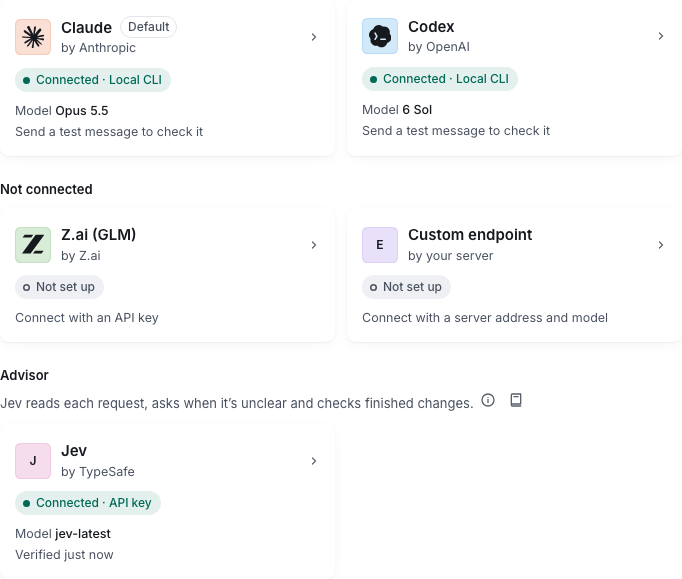
-
Under How to connect, pick Local CLI and select Detect and verify.
-
Or pick API key, paste the key and select Verify key.
-
Wait for Connected, then Send test message under Test.
-
Under Defaults for new chats, pick the Model, Mode and Effort.


A Local CLI sign-in stays in the CLI. An API key goes to your system keychain, never to Spark's database or logs.
Important: Paste keys only into the key field, never into a chat. See Keep keys out of chats.
If it fails, see Providers and keys.